



 TRAINING


 PAPERS
 REFERENCES
 GET IN TOUCH

|

|
 Downloads
|
 Prices
|
 Videos
|


GeolOil installation for Windows, MacOS, and Linux
-
Install or update Java.
GeolOil petrophysics is listed by the official SPWLA software directory. It runs on Windows PC, MacOS, and Linux. We recommend to install Java-26 (as minimum, it runs on Java-17) from Long Term Service LTS Downloads, or Java SE Archive Downloads, both from Oracle Distributions.
 On Windows, download and run the "x64 MSI Installer" file with the extension .msi
(the .exe file occasionally fails)
On Windows, download and run the "x64 MSI Installer" file with the extension .msi
(the .exe file occasionally fails)
-
Install GeolOil. You need to install GeolOil for each user account
running the physical machine.


 Generic Installation:
Windows 11, 10, MacOS, Linux:
Generic Installation:
Windows 11, 10, MacOS, Linux:
Click below to download and save the file called "GeolOil_Install.jar". Then, open and run the downloaded executable installer JAR file from the operating system —usually with double-click—.
 DOWNLOAD "GeolOil_Install.jar" and double-click
this file with its java coffe-mug icon. ∎
DOWNLOAD "GeolOil_Install.jar" and double-click
this file with its java coffe-mug icon. ∎
After successful installation on all operating systems, the Desktop will show one file with a Java coffee icon called "GeolOil.jar". This is the executable file, just double-click it to run GeolOil.
NOTE: For Windows 11 & 10 systems, an additional optional file with a red "G" icon called "GeolOil_X.exe" might show on the Desktop. This is an equivalent executable file, but may mistakenly rejected or blocked by anti-virus and firewalls. Most users prefer to run this red "G" icon file and remove the coffe mug "GeolOil.jar" file. Both run the same.
Help? Watch the
 generic installation video.
-
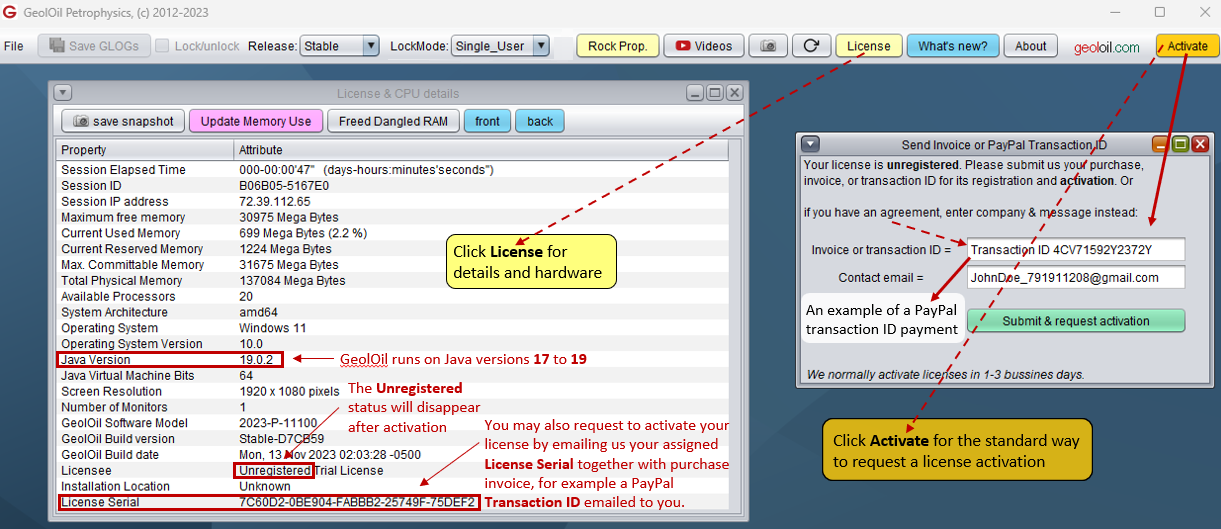
Run GeolOil and Activate it. Only if you acquired a paid license, click the Activate
orange button to set the features you paid for. We normally activate licenses within 1-3 business days.
Troubleshooting
Installing GeolOil over strict Firewall Network Environments
Some large national oil companies have very strict firewall network practices that block many ports, sockets, connections, and unknown servers. During installation, GeolOil exchanges tiny pieces of information between your machine and our servers. Probably some blockage could break down the installation process. You may need to ask the system administrator to allow communications with GeolOil fixed IP address.
Instead of adding exceptions or risky openings to the firewall, we recommend this procedure to install your GeolOil license:
- Physically disconnect the machine to the company internet firewall network.
- Temporarily connect the machine to other unfirewalled regular wired or wireless Internet Service Provider (ISP). Even a modest portable cell phone Tethering or HotSpot connection could work.
- Install Java and GeolOil normally. Run GeolOil and send us your license serial.
- Re-connect your machine to the original company internet firewall network. Probably GeolOil would now work, and perhaps be even capable to use the GeolOil auto-update service through the firewall.
- If everything fails, your last hope may be, is to purchase a GeolOil perennial license. These are the only type of licenses able to work 100% standalone without any type of internet connections.
Installing GeolOil over picky Virus Software
Just add an exception to the anti-virus and firewall software to allow GeolOil installation. You might need to whitelist geoloil.com and its unique IP address.
 GeolOil is listed by the official
SPWLA software directory
GeolOil is listed by the official
SPWLA software directory
| |



|
|
|
© 2012-2026 GeolOil LLC. Please link or refer us under Creative Commons License CC-by-ND |